
OpenGraph in Idtheme Themes
OpenGraph (OG) is a set of meta tags that helps platforms like Facebook, Twitter, WhatsApp, and Pinterest display the correct title, description, and image when your pages are shared. In recent theme releases, the built‑in OpenGraph in Idtheme themes has been removed because:
- Almost all popular SEO plugins (Yoast, All In One SEO, Rank Math, WP SEOPress) already provide OpenGraph features.
- Many users do not disable OG from either the theme or the plugin, causing duplicate OG and heavier page loads.
Recommendation: use OpenGraph from your SEO plugin only and disable any OG provided by the theme if present.
OpenGraph with Yoast SEO
Yoast is one of the most popular SEO plugins with comprehensive OG support.
Enable Yoast OpenGraph
- Go to your WordPress dashboard.
- Open SEO -> Social.
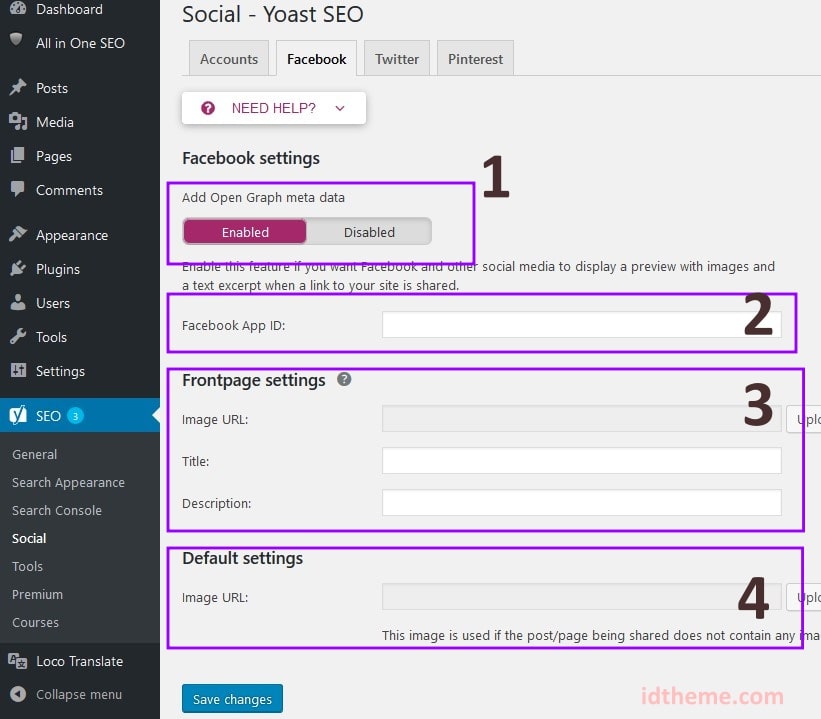
- In the Facebook tab, enable Add Open Graph meta data or a similar option (ensure it is Enabled).
If the Facebook App ID option is no longer available, this is a change in the latest Yoast version. Full explanation: https://yoast.com/help/fb-app-id-warnings
Front Page OpenGraph Settings
Still in the Facebook tab:
- Fill Image URL: the default image for the homepage.
- Fill Title: the title shown when the homepage is shared.
- Fill Description: a short description shown on the share card.
If a post or page has no featured image, this default image will be used.
Per‑Post OpenGraph Settings
Yoast also lets you configure OG per post:
- Open a post in the editor.
- Scroll to the Yoast SEO settings section.
- In the Social tab or the Facebook/Twitter section:
- Set the image to display.
- Edit the title (Facebook Title).
- Edit the description (Facebook Description).
If you don’t fill in data in the Social tab:
- The post’s default title will be used as the title.
- The excerpt will be used as the description.
- The featured image will be used as the OG image.
For detailed guidance, see the official docs: https://kb.yoast.com/kb/getting-open-graph-for-your-articles/
Example Yoast Settings Screens
Below are sample Yoast settings you can follow (save screenshots from your dashboard to the public folder and adjust the image paths):
OpenGraph with All In One SEO Pack (AIOSEO)
AIOSEO also provides comprehensive OG settings.
Enable AIOSEO OpenGraph
- Go to your WordPress dashboard.
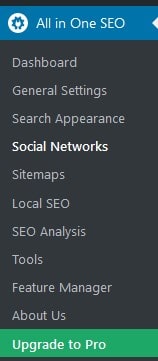
- Open All In One SEO -> Social Networks.
- Go to the Facebook tab.
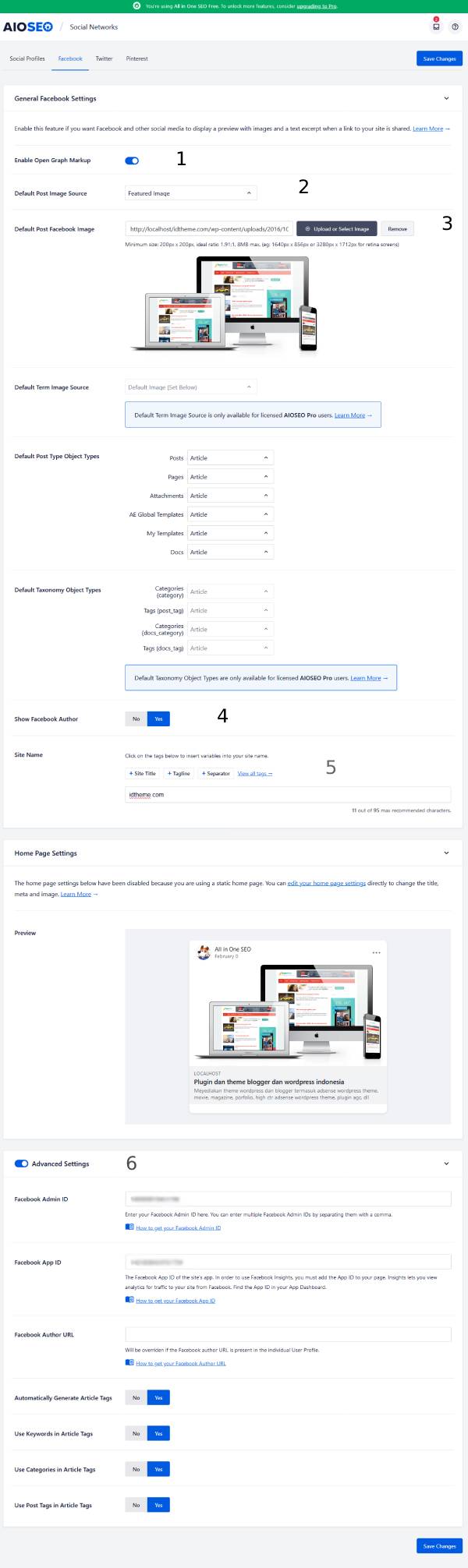
- Check or enable Enable Open Graph Markup.
Default Image and Image Source Settings
In the Facebook tab:
- Default Post Image Source: change to Featured Image so the plugin uses the featured image by default for OG.
- Default Post Facebook Image: upload a default image used when no featured image is available.
- Other options (e.g., numbers 4 and 5 in the reference screenshot) can be filled according to your branding needs (site name, description, etc.).
If you wish, you can also fill:
- Facebook Admin ID
- Facebook App ID
These settings are optional and only needed if you want to link the site to specific Facebook accounts.
Per‑Post OpenGraph Settings (AIOSEO)
To configure OG per post:
- Open a post.
- Scroll to the AIOSEO settings section.
- Open the Social tab.
- In the Facebook tab:
- Fill Facebook Title.
- Fill Facebook Description.
- Choose Image Source:
- Featured Image.
- Custom Image (upload a specific image only for OG).
By choosing Custom Image, you can upload a distinct image different from the featured image for Facebook shares.
Example AIOSEO Settings Screens
Add AIOSEO settings screenshots to help users:
OpenGraph with Rank Math
Rank Math includes OpenGraph and this feature is enabled by default.
Default Image Settings in Rank Math
- Go to Rank Math -> Titles & Meta.
- Open the Global Settings tab.
- Set the Default Thumbnail or a default image used when a post has no featured image.
Rank Math Social Meta Settings
- Go to Rank Math -> Titles & Meta.
- Open the Social Meta tab.
- Fill social data:
- URLs for Facebook, Twitter, and other social media profiles.
- Other options that improve share appearance.
By default, Rank Math uses the Featured Image as the OpenGraph image for posts. Ensure every post has a featured image.
Per‑Post OpenGraph Settings (Rank Math)
Depending on the editor you use:
Classic Editor
- Open the post.
- Scroll down to find the Rank Math metabox.
- Open the social section or tab (share icon).
- Set:
- OG image.
- Title.
- Description.
Gutenberg Editor
- Open the post in Gutenberg.
- On the right side of the editor, you’ll see the SEO score (e.g., Rank Math SEO score).
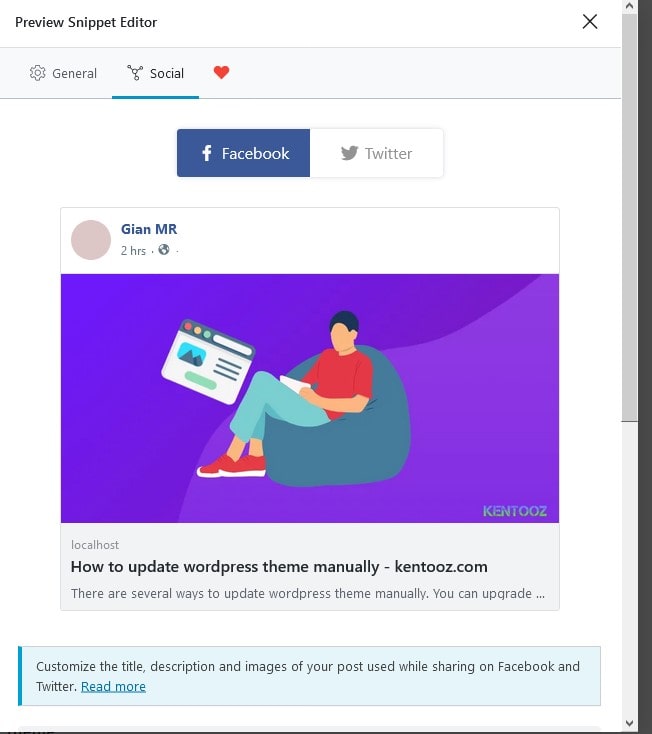
- Click that panel, then click the share icon (or the icon next to the SEO icon).
- Click Edit Snippet.
- In the popup, set:
- OG image.
- Title.
- Description.
Example Rank Math Settings Screens
You can save screenshots of your Rank Math settings and place them in the public folder:
Tips and Recommendations
- Do not enable OG twice: ensure only the SEO plugin outputs OG meta. Disable any OG provided by the theme if present.
- Use a featured image on every post: this ensures consistent and attractive share previews.
- Test share results:
- Facebook Sharing Debugger.
- Twitter Card Validator.
- Try sharing to WhatsApp/Telegram to see the actual preview.
- Use high‑quality, proportionate images:
- Common recommended size: 1200 x 630 px for Facebook.
- Use the same (or similar) sizes for consistency across social networks.
Additional Notes
What if your SEO plugin doesn’t have OpenGraph features? Most SEO plugins include OpenGraph, but if yours doesn’t, there are many OpenGraph plugins available; one option is: https://id.wordpress.org/plugins/wonderm00ns-simple-facebook-open-graph-tags/.
After installing an OpenGraph plugin, sharing should work correctly. If the image preview is incorrect, it may be due to Facebook or WhatsApp cache; you can debug OpenGraph here: https://developers.facebook.com/tools/debug/
It’s also possible your server blocks Facebook’s OpenGraph requests. To resolve this, try disabling mod_security. If issues persist, contact your hosting provider to ensure OpenGraph from Facebook is not blocked.
Notes about WhatsApp sharing:
- If WhatsApp shares don’t show a preview, try this plugin: https://wordpress.org/plugins/og/
- If the result is the same, try disabling Autoptimize; some users encounter issues due to Autoptimize.
- Try setting the featured image using an image under 100 KB.
- If it still fails, try disabling mod_security on the server.
- If problems persist, contact your hosting provider or look for other tutorials.
Please note: the theme does not include OpenGraph; all OG must be provided by plugins. If images don’t appear and similar issues occur, that is part of the OpenGraph implementation. No plugin can guarantee a 100% image preview on WhatsApp or Facebook, since sometimes issues arise between social media servers and individual site servers. These should be handled by the plugin’s support. The suggestions above may help reduce such issues.