
How to Purchase a Theme
This guide explains step‑by‑step how to buy a theme from Kentooz / Idtheme.
Video Tutorial
Please watch the following tutorial video for a complete guide:
1. Choose a Theme
- Open the product page of the theme you’re interested in (e.g., Muvipro, Majalahpro, etc.).
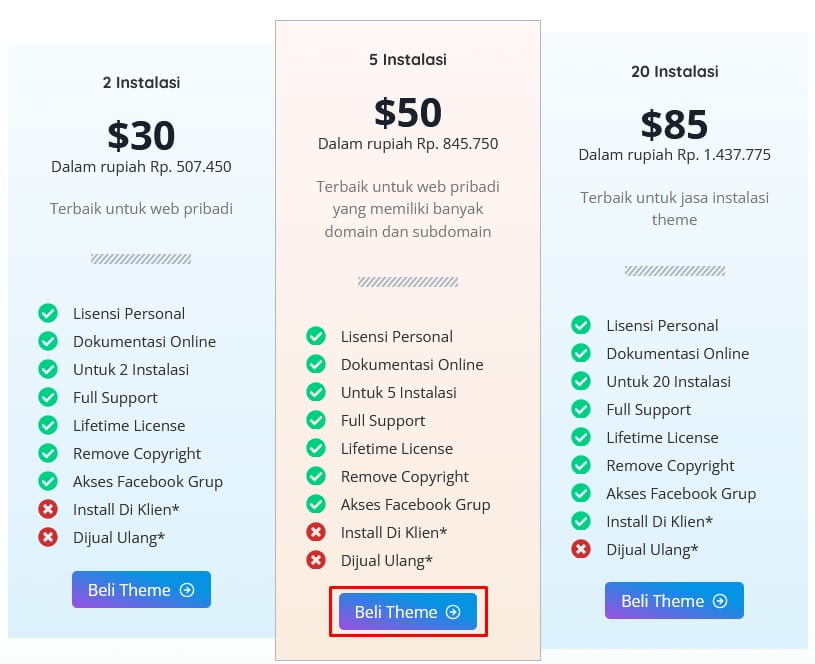
- In the pricing table, click Buy Theme.
- You will be redirected to the purchase form on the Kentooz website.
The buy button may look different for each product, but it is generally located in the pricing/package section. Example:
2. Fill Out the Purchase Form / Create an Account
On the purchase page:
- If you don’t have an account:
- Fill in your details in the registration form (name, email, etc.).
- Create a password for your Kentooz account.
- If you already have an account:
- Click Login first, then continue selecting products.
You can:
- Switch the language to Indonesian (if available).
- Log in/sign up using Facebook.
- Choose the product/theme you want to buy (it may be a list, popup, or radio buttons depending on the layout).
- Enter a coupon code if you have one.
- Check the Anti‑SPAM option if requested.
After all data is correct, click Next to proceed to payment.
3. Choose a Payment Method
Typically, several payment methods are available:
PayPal
- After clicking Next, you will be redirected to PayPal.
- Log in to your PayPal account and complete the payment as instructed.
- If payment succeeds, your account is usually activated automatically and you can download the theme from the member area:
https://member.kentooz.com/member - If the account is not activated automatically, contact support for verification.
Offline Payment (Bank Transfer)
- You will be redirected to the offline payment instructions page.
- You will also receive a Pending Invoice email from Kentooz (check the SPAM folder if it’s not in the inbox).
4. Pay via Bank
Make a transfer according to the invoice instructions, using one of the official accounts (examples):
- Bank Mandiri – Account No.: 1390010724486 a/n Gian Mokhammad Ramadhan
- Bank BCA – Account No.: 0461444741 a/n Gian Mokhammad Ramadhan
- Bank BTPN – Account No.: 90014798709 a/n Gian Mokhammad Ramadhan
(Account numbers can change at any time; always follow those listed on the latest invoice.)
After the transfer:
- Submit payment confirmation as instructed in the email/invoice (usually via support email or a confirmation form).
5. Activate and Download the Product
After payment is confirmed:
- The team will activate your account and subscription (manual process after reading the confirmation email).
- Once active, log in to the member area:
https://member.kentooz.com/member - In the member page, you can:
- View the list of purchased products.
- Download the theme files and accompanying plugins.
If the account is not active after some time:
- Check your email again (including SPAM) for follow‑up information.
- Contact Idtheme/Kentooz support and include proof of payment.