
How to Post in the Wpberita Theme
Wpberita is designed for text‑based news/articles.
Post Formats
- Standard: regular post with a featured image.
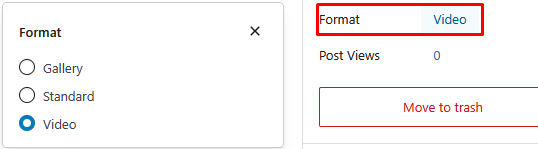
- Video: use the Video post format, enter the video source via Oembed or Iframe in Video Settings.
- Gallery: use the Gutenberg Gallery block or insert a gallery in the Classic Editor.
Here is an example of post format settings:
Standard Posting
Standard posting is used for regular articles (without special video/gallery formats).
Steps:
- Go to Posts → Add New.
- Fill in:
- Title (article title).
- Content (article body).
- Category, Topic, and Tags if used.
- Ensure Post Format remains Standard (default).
- Choose a Featured Image:
- Click Set featured image.
- Select or upload the image to use as the main thumbnail.
- Featured image tutorial.
- Click Publish to publish the article.
Video Posting
Video posts use Post Format: Video and the Video Settings meta box.
Steps:
- Go to Posts → Add New.
- Enter title, content, category, topic, and tags as usual.
- Change Post Format to Video.
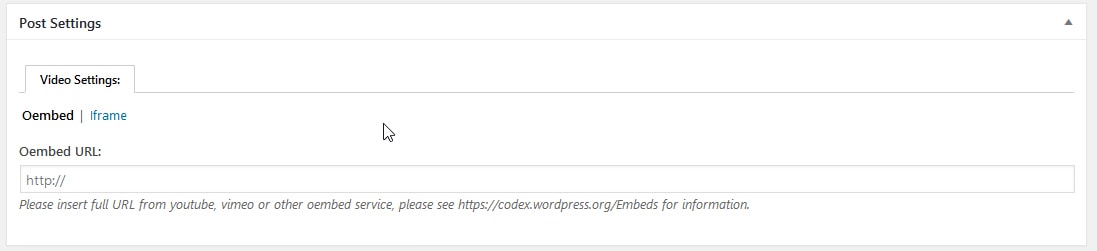
- Find the Video Settings meta box (usually below the editor):
- It consists of 2 tabs:
- Oembed
- Iframe
- It consists of 2 tabs:
- If using Oembed:
- Enter the video URL from a WordPress‑supported platform, for example:
- YouTube
- Dailymotion
- WordPress will embed it automatically.
- See the list of oEmbed services:
https://codex.wordpress.org/Embeds
- Enter the video URL from a WordPress‑supported platform, for example:
- If using Iframe:
- Enter the
<iframe>code provided by the video platform.
- Enter the
- Choose a Featured Image for the thumbnail.
- Click Publish.
Here is an example of video settings:
Gallery Posting
Gallery posts let you display multiple images in a single post with a gallery layout.
Steps:
- Go to Posts → Add New.
- Enter title, content, category, topic, and tags as usual.
- Change Post Format to Gallery.
- Upload the images you want to display:
- Click Add Media.
- Upload all images you want to include in the post.
- No need to press Insert into post for each image if the theme automatically displays them as a gallery.
- Choose one image as the Featured Image.
- Click Publish.
The Wpberita theme will display the images as a gallery according to the configured layout.
Split Post (Divide an Article into Multiple Pages)
If your article is very long, you can split it into several pages.
How to:
- Open the editor in Text (HTML) mode or use a block that supports it.
- Between the paragraphs you want to split, insert the tag:
<!--nextpage-->- Repeat in multiple sections if you want more than two pages.
WordPress will display pagination (pages 1, 2, 3, ...) at the bottom of the article.
Additional reference:
https://wordpress.com/support/wordpress-editor/blocks/page-break-block/
Focus News (Special Layout)
The Wpberita theme provides a Focus News feature to highlight specific news with a different layout on index and archive pages.
Settings are usually available in the Theme Settings meta box on the right or below the editor:
- Check the Focus News option (or similar name).
After saving, posts with Focus News enabled will appear differently on index/archive pages, e.g., larger or highlighted.