
How to Register an Account and Get a TMDB API Key
Video Tutorial
This tutorial explains how to register a TMDB account and obtain a TMDB API key. Video tutorial:
Several Idtheme themes (e.g., Muvipro) use TMDB (The Movie Database) to automatically fetch movie and TV series data.
Below are the steps to register and get a TMDB API key.
1. Create a TMDB Account
- Open the official TMDB site: https://www.themoviedb.org/
- Click the Sign Up button at the top right.
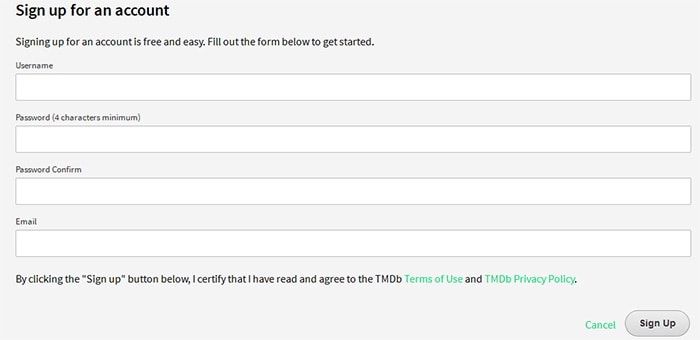
- Fill out the registration form:
- Username
- Password
- Click Sign Up.
- Check your email inbox and click the confirmation link sent by TMDB.
- After confirming, your TMDB account is active.
Here is an example of the signup form:
2. Complete Basic Profile Data
After your account is active and you’re logged in:
- Log in to TMDB.
- Complete profile details if requested (name, country, and other required information).
- Ensure your account is ready before requesting an API key.
3. Open the API Menu
- After logging in, go to your account page.
- In the left menu, find and click API.
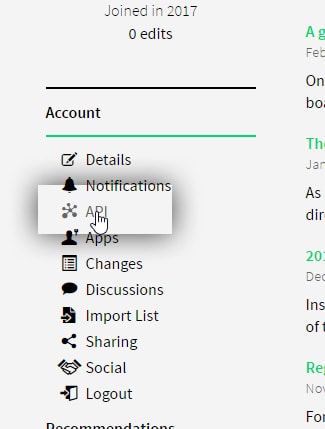
- Scroll to the bottom of the page to find Request an API Key.
- Click the Click Here link in that section.

4. Request a New API Key
After clicking Click Here, you’ll be directed to the API key request form.
- Choose the API Key type:
- It’s recommended to choose Developer (for website/application development).
- In Type of use, select:
- Website (since it will be used on a WordPress site / Idtheme theme).
- Fill out the API registration form:
- Website URL: your website address.
- Application Name: the name of your website or project.
- Application Summary / Description: explain briefly in English, for example:
Use TMDB API to display movie information on my personal website using an Idtheme theme.
- Fill in any other required details accurately.
- Click Submit to send the API key request.
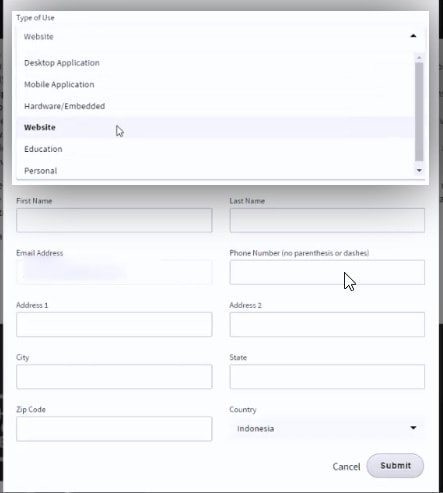
If the data you provided is correct, the API key is usually approved promptly by TMDB.
5. View the API Key (v3 auth)
After your request is approved:
- Return to the API page in your TMDB account.
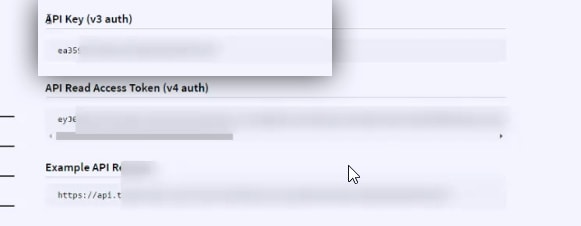
- In API Key (v3 auth), you will see the API key (a combination of letters and numbers).
- Store this API key securely.
- Some accounts also have an API Read Access Token (v4 auth), but for integration with many Idtheme themes, API Key (v3 auth) is usually sufficient.
After approval, you will get:
- API Key (v3 auth).
- Sometimes an API Read Access Token (v4).
6. Save the API Key in Theme/Plugin Settings
The API key needs to be entered into the theme or plugin settings that use TMDB.
Example for Muvipro (or other themes integrated with TMDB):
- Go to Settings → Idmuvi Core → TMDB Settings (or similar).
- Enable Enable TMDB API.
- Enter your TMDB API Key.
- Save the settings.
After that:
- The feature to import movie/TV data from TMDB can be used.
- Ensure your server can access TMDB (not blocked by a firewall).
7. API Usage Notes
- Do not share your API key publicly.
- Follow TMDB’s terms of use.
- If your API quota is exhausted or an error occurs, check your TMDB dashboard.