
Frequently Asked Questions About Idtheme License Keys
Below are common questions related to Idtheme theme license keys.
1. Where Can I Get the License Key?
You can obtain your license key in the Kentooz/Idtheme member area.
Steps:
- Log in to the member area:
http://member.kentooz.com/ - Open the License or License Key menu. Or use the full link: http://member.kentooz.com/softsale/license
- The page will list licenses for the products you purchased.
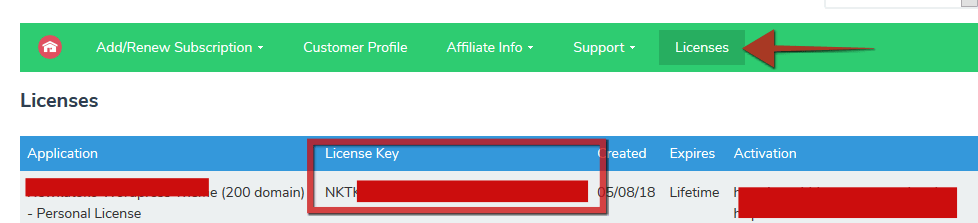
Notes:
- Make sure you log in with the same account used for the purchase.
- If the license doesn’t appear, check your purchase history and payment method.
2. Where Do I Enter the License Key and How Do I Deactivate It?
Each Idtheme generally has its own license plugin. Examples:
- If you purchased the Muvipro theme:
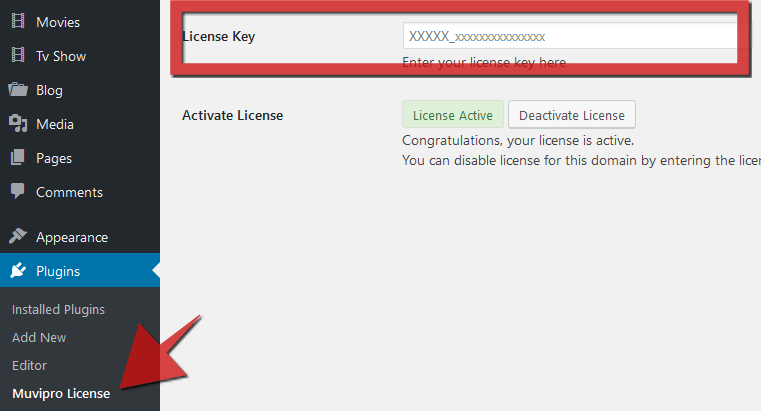
- The license menu is in Plugins → Muvipro License.
- If you purchased the Newkarma theme:
- The license menu is in Plugins → Newkarma License.
- Other themes will have a similar menu, e.g., [ThemeName] License.
Activate the License
- Go to the WordPress dashboard.
- Open Plugins → [Theme Name] License.
- Enter the License Key you got from the member area.
- Click Activate / Actived.
If successful:
- License status changes to active.
- Automatic updates and license‑related settings work normally. Screenshot:
Deactivate the License
If you want to deactivate the license on that domain:
- Open the same theme license menu.
- Enter your License Key again.
- Click Deactivate / Deactivated.
3. After Entering the License Key, Why Doesn’t the Theme Copyright in the Footer Disappear?
Possible causes:
Cache plugin / CDN
- If you use:
- Autoptimize plugin.
- Cache plugins (WP Fastest Cache, W3TC, LiteSpeed Cache, etc.).
- CDN (e.g., Cloudflare).
- Solution:
- Perform clear/purge cache in all cache plugins.
- Purge cache in the CDN.
- If you use:
Inconsistent HTTP/HTTPS settings
- If your site uses HTTPS, ensure:
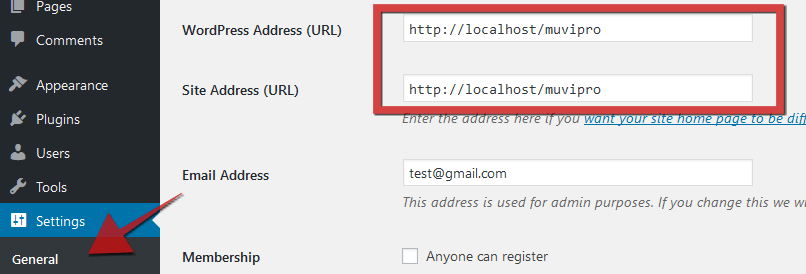
- Go to Settings → General.
- Check WordPress Address (URL) and Site Address (URL).
- Both must use
https://(nothttp://).
- If your site uses HTTPS, ensure:
After fixing the above, clear cache again and recheck the footer copyright.
4. After Updating the Theme, Why Do I Have to Re‑activate the License?
In some cases after a theme update:
- Theme license options need adjustment (e.g., bug fixes in the license system).
- As a result, you may be asked to re‑activate the license.
Solution:
- Enter your License Key again on the theme’s license page.
- Click Activate like the first activation.
If a developer installed the theme for you:
- You can ask the developer to:
- Re‑activate the license.
- Or provide the license key (if permitted) so you can activate it yourself.
This doesn’t happen often, but can occur after major changes or fixes to the license system.
5. Can I Request to Deactivate or Remove a Domain from the License Code?
Generally, yes, under certain conditions.
Main requirements:
- The license purchase is not older than 1 year from the purchase date.
- Check the purchase date in the license menu (the
createdcolumn).
- Check the purchase date in the license menu (the
- The old domain is:
- Expired/not active, or
- Redirected to another domain, or
- Parked and no longer running WordPress.
If the domain is still active using WordPress and an Idtheme:
- You are expected to deactivate the license yourself via the WordPress dashboard, following the steps in point 2.
- The Idtheme team will not forcibly remove the domain if WordPress and the theme are still active, because:
- The license code remains stored in the database.
- For license data security and consistency.
If the domain has been switched to another theme:
- Temporarily reinstall the related Idtheme.
- Open the theme’s license page.
- Deactivate the license from the dashboard.
Additional license questions may be added over time. If you have more questions:
- Please submit them via the helpdesk or official Idtheme/Kentooz contacts.