
How to Configure Menus in the Wpmedia Theme
The Wpmedia theme uses WordPress’s native menu system.
Setup is similar to other Idtheme themes.
Video Tutorial
The original documentation provides a video. Watch it first to understand the setup flow.
Create the Main Menu
- Go to Appearance -> Menus.
- If you don’t have a menu yet:
- Click create a new menu.
- Name it (e.g., Main Menu).
- Click Create Menu.
- Add items to the menu:
- From the left panel (Pages, Posts, Custom Links, Categories).
- Check the items you want to include.
- Click Add to Menu.
- Arrange the menu structure using drag & drop.
- To create a submenu (dropdown), move an item slightly to the right under its parent.
Menu Locations
- Primary: (Supports 3 levels) main header menu.
- Secondary: (Supports 1 level) menu to the right of the grid logo in the header.
- Side Menu (Mobile): (Supports 2 levels) mobile menu.
- Footer menu: (Supports 1 level) footer navigation.
Configure in Appearance > Menus > Manage Locations, assign a menu to each location, then Save Changes.
Additional Menu Item Options
Note: Simple mega menu (column menu) is supported. Configuration steps:
- First enable CSS Classes: click Screen Options at the top right to reveal the settings; see the screenshot below:

- Check the CSS Classes option. Then edit the Parent Menu (main menu; see the video above).
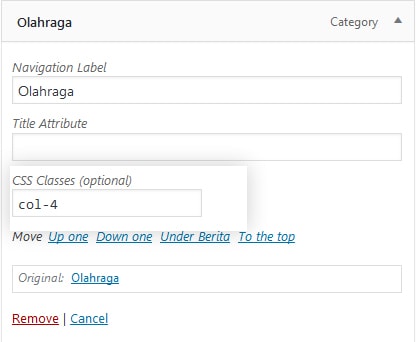
- In CSS Classes, enter:
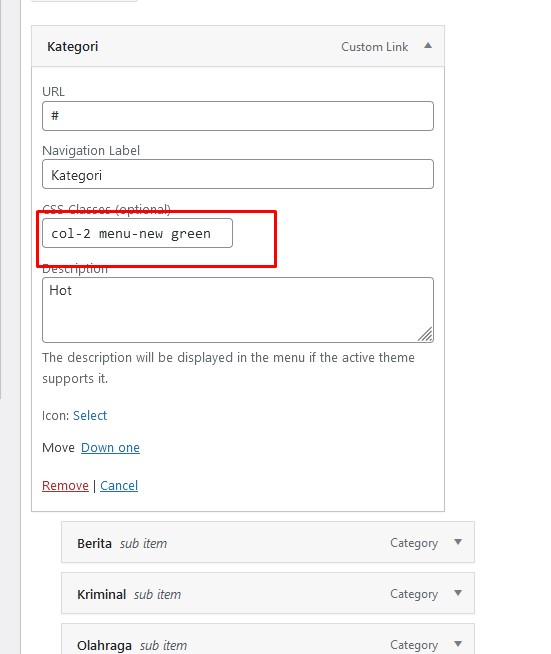
- col-2 for a 2‑column submenu
- col-3 for a 3‑column submenu
- col-4 for a 4‑column submenu
or:
for color, new, and dot class codes, enter:
- menu-dot to add a dot above the menu; you can combine it with the available colors. See the color classes below…
- menu-new to add a “new” (or other text) label; you must fill the description field, e.g., hot, new, popular, etc. This text appears above the menu label.
- menu-orange-light colors the menu text light orange
- menu-green-light colors the menu text light green
- menu-blue-light colors the menu text light blue
- menu-red-light colors the menu text light red
- menu-orange colors the menu text orange
- menu-green colors the menu text green
- menu-blue colors the menu text blue
- menu-red colors the menu text red
- full-image if you want a menu item that uses only an image without a title, use this class.
Below are color classes you can combine with menu-dot and menu-new:
- orange colors the menu orange; must be combined with menu-dot or menu-new
- green colors the menu green; must be combined with menu-dot or menu-new
- blue colors the menu blue; must be combined with menu-dot or menu-new
- red colors the menu red; must be combined with menu-dot or menu-new
You can also add the desktop-only class to show an item only on desktop. For example, if a primary menu item has submenus and you want to hide it on mobile, add desktop-only. Since the primary menu becomes a scroll menu on mobile, it’s recommended to hide primary items that have submenus. Example:

You can enter more than one CSS code. For example, to add a red dot, enter: menu-dot menu-red.
- Done.
Different from other menus, see the side menu settings example:
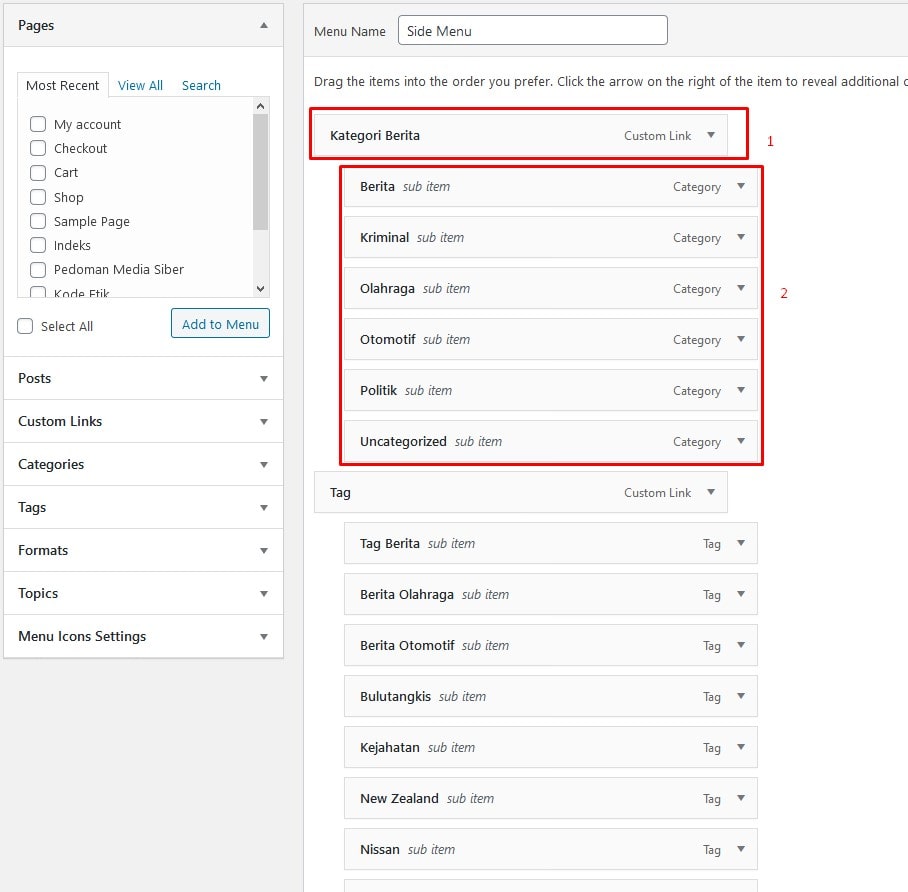
No. 1 is the menu heading. No. 2 is the main menu. Side menu supports up to 2 columns only, so use col-2 on the parent menu if you want its submenu in 2 columns. Example:
The mobile side menu will look like this:
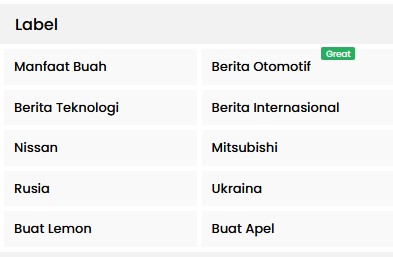
The default is 1 column. You can also use menu-new, menu-dot, and others.
Note: Watch the tutorial video above if you want to fully understand menu setup in this theme. For icons, see the video above or the older tutorial below:
Menu Structure Tips
Solution to add icons to menus: Add Icons to Menu
Use a simple, visitor‑friendly structure:
- The main menu includes key categories or pages (Home, Blog, Contact, etc.).
- Submenus for further grouping (e.g., news categories).
For mobile:
- Keep dropdown levels shallow.
- Use concise, clear labels.
Notes
- Keep the menu structure simple and easy to understand.
- For mobile, use a dedicated menu to maintain usability.
- Use the footer menu for policy links, contact, or other important information.