
Wpmedia Version 1.0.3 Tutorial
Here is the tutorial for WPMedia version 1.0.3.
This update adds 2 new features not covered in previous tutorials:
- Text Before & Text After in Banner Inside Content
- Text After Inside Content
The Register JSON Recent Posts feature lets you display posts from a different domain or subdomain on your site’s homepage, including images and other data.
Video Tutorial
Before starting, please watch the tutorial video below:
1. Text Before Banner Inside Content & Text After Inside Content
For the first feature, see the example in the image below:

How to Configure
- Open Customizer
- Select Banner
- Go to Banner Inside Content
- Scroll to the bottom
Set the options according to the example in the image above.
This feature is very easy to use and requires no additional configuration.
2. Display Posts from Another Domain/Subdomain
Before proceeding, we recommend watching the tutorial video from start to finish to understand the flow correctly. Do not skip.
Configuration Steps
1. Theme Preparation
Make sure:
- The main domain and target domain (subdomain/other domain) use the WPMedia theme
- Category colors are the same
- Thumbnail sizes are the same
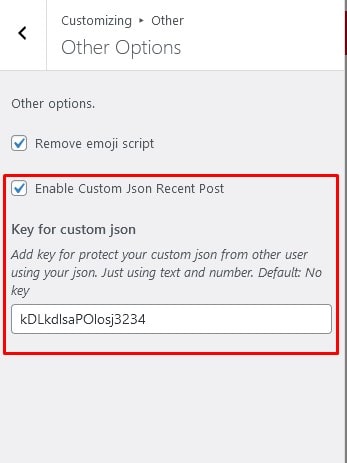
2. Enable Custom JSON
On each target domain:
- Go to Customizer → Other → Other Options
- Enable Custom JSON Recent Posts
- Fill in the Key For Custom JSON
Example settings:
3. Install the WPMedia WPFJ Plugin
On the main domain:
- Install the WPMedia WPFJ plugin
- The plugin is available in the
pluginfolder when you extract the WPMedia files - Follow the plugin installation tutorial provided
4. Display Module Home / Top Notification
If you want to display Module Home (Large Slider at the Top) or Top Notification from another domain:
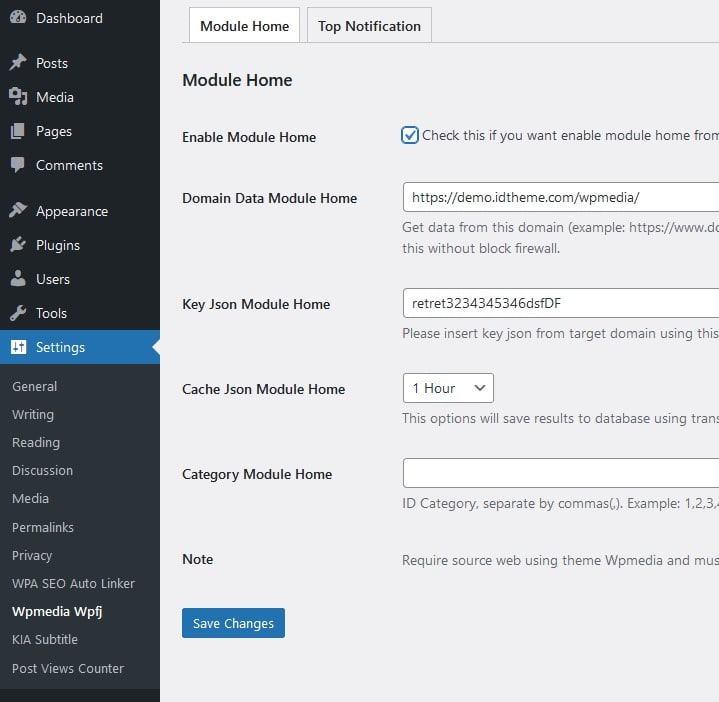
- Go to Settings → WPMedia WPFJ
- Check Enable Module Home
- Fill in:
- Domain Data → target domain
- Key JSON → from the target domain
- Cache JSON
- Categories to show
The Top Notification configuration is identical to Module Home. Example settings:
5. Display in Sidebar / Widgets
To display posts from another domain in the sidebar or widgets:
- Go to Appearance → Widgets
- Use the plugin’s widgets:
- Recent Posts (WPMedia WPFJ)
- Module Posts (WPMedia WPFJ)
Configuration and display are the same as the theme’s built‑in widgets, with extra options for external domains.
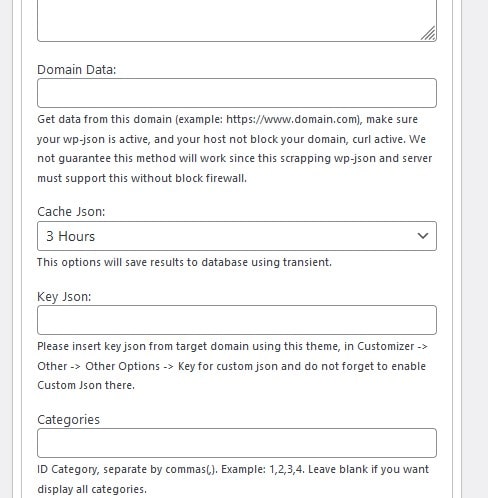
Fill in the following:
- Domain Data → target domain
- Cache JSON
- Key JSON → from the target domain
- Category ID
- Leave blank to display all categories
Here is an example configuration for the WPMedia WPFJ widget:
6. Done 🎉
Important Notes
Attention
- Don’t forget to clear cache after changing the options above
- It’s recommended that all domains are on one server
- The main and target domains must use the same theme
- If the subdomain content does not appear:
- Check the firewall
- Ensure the configuration is correct
- Whitelist the domain on your hosting (contact your hosting provider)
- Watch the tutorial video without skipping