
Muvipro Installation and Setup
Video Tutorial
Before installing Muvipro, watch the video above to the end.
Installation Steps
- Download the Muvipro theme from the member area.
- Extract the package you downloaded.
- Upload the
muvipro.zipfile via Appearance -> Themes -> Add New -> Upload Theme. - Activate the Muvipro theme.
- Install the recommended and required plugins, then activate them all.
If you need ad alternatives beyond AdSense, the original documentation suggests Galaksion as one option.
License Activation
- Go to Plugins -> Muvipro License.
- Enter the license key you received from the Kentooz member area:
https://member.kentooz.com/softsale/license - Save and ensure the license status is active.
Import Demo Data
- Go to Appearance -> Import Demo Data.
- Click Import Demo Data.
- Wait a few minutes until the process completes.
- When finished, your site will look similar to the official Muvipro demo.
- Continue by configuring widgets and other settings.
Permalink Settings
After importing the demo:
- Go to Settings -> Permalinks.
- Set the permalink structure as needed (e.g., Post name).
- Change Category Base to
genre(as recommended in the Muvipro documentation). - Save changes.
Configure TMDB API (Idmuvi Core)
Muvipro integrates with TMDB for movie data.
Settings are in the Idmuvi Core plugin:
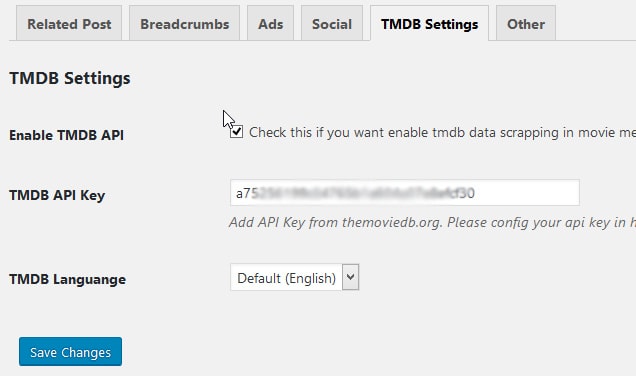
- Go to Settings -> Idmuvi Core -> TMDB Settings.
- Check Enable TMDB API.
- Enter your own TMDB API Key.
- Save the settings.
TMDB settings example:
For a tutorial on obtaining a TMDB API Key, see:
Cara Mendaftar Akun dan Mendapatkan API Key TMDB
You can view the TMDB settings directly on Settings -> Idmuvi Core -> TMDB Settings in your WordPress dashboard.
Idmuvi Core Settings
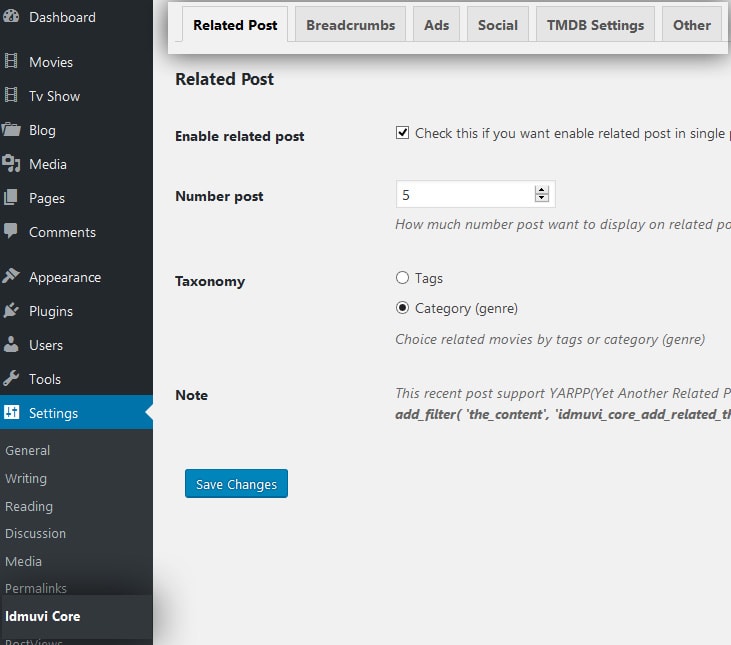
Go to Settings -> Idmuvi Core. See the example screenshot:
- Tab Related Posts
- Enable/disable related posts.
- Set the number of related posts to display.
WARNING
This option has been moved to Customize -> Movie -> Movie Content.
- Tab Breadcrumbs
- Enable breadcrumbs.
- Configure breadcrumb label text and separator.
WARNING
This option has been moved to Customize -> Movie -> Movie Content.
Tab Ads
- Configure ad code in the theme’s available locations (top, bottom, in-content, etc.).
- Enable anti‑adblock script if needed.
Tab Social
- Configure social share buttons.
- Configure OpenGraph (if you’re not using an SEO plugin for OG).
Tab TMDB Settings
- Enable and enter the TMDB API Key (required for TMDB automation features).
Tab Other
- Configure scripts in the head and footer (Google Analytics, Facebook Pixel, custom scripts).
- Various optimization options (disable emoji scripts, version query, etc.).
Style Settings via Customizer
Go to Appearance -> Customize. See the screenshot:
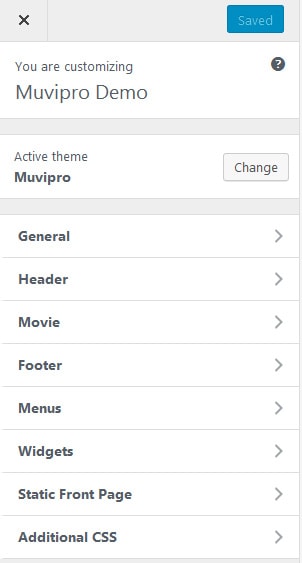
General Tab
- Configure the global layout (boxed / fullwidth).
- Configure global colors (background, primary color, links).
- Configure the background image.
- Configure fonts (Google Fonts) and heading/body sizes.
Header Tab
- Configure icons, logo.
- Configure header background color.
- Configure header background image.
- Configure the header menu and menu colors.
Movie Tab
- Configure movie page layout:
- Movie archive display.
- Single movie display (related posts, breadcrumbs, poster, movie details, etc.).
Footer Tab
- Configure footer background color.
- Configure copyright text.
- Configure the number of footer widgets.
Additional: Top Navigation (Version 1.0.4+)
In version 1.0.4 there is a new Top Navigation feature:
- Full settings are in the dedicated documentation:
Top Navigation Muvipro
Server Requirements
- Apache with PHP 7.2 or higher.
- WordPress 5 or higher (latest version recommended).
- Curl and Json modules enabled (required).
For security, use a PHP version newer than 7.2. PHP 7.4+ is strongly recommended for better security and performance.